
💡 Quick Answer
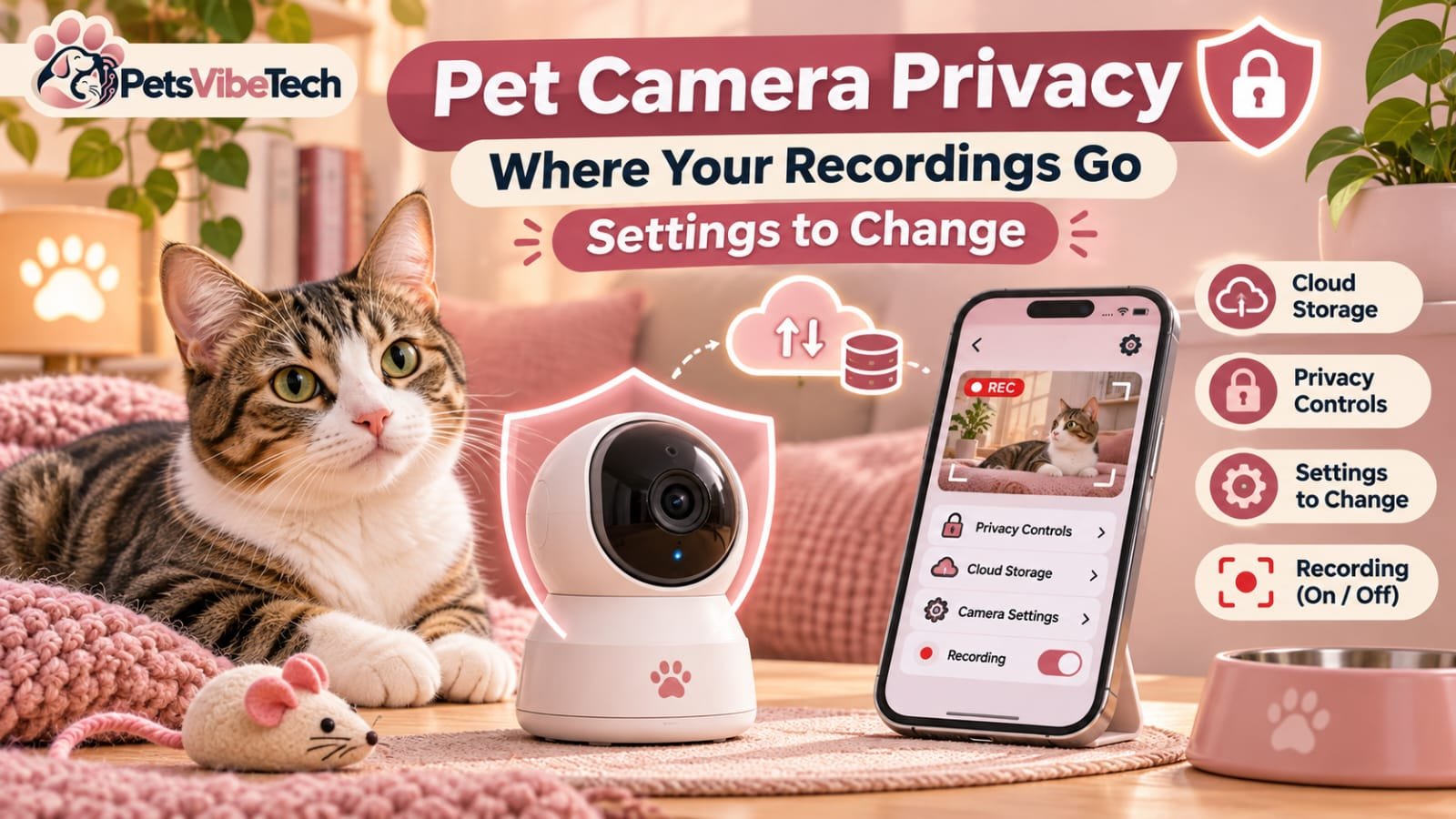
Pet camera privacy depends on where footage is stored, who can access it, and which recording features you’ve enabled. Videos may stay on a microSD card or home storage hub, upload to the manufacturer’s cloud, or be downloaded to your phone. Start by checking storage settings, account security, audio recording, camera sharing, and privacy mode.
You probably bought your pet camera to answer a simple question: What’s my cat or dog doing while I’m away?
But the camera doesn’t necessarily stop watching when you get home.
It might capture family conversations, visitors, or someone walking through the living room. If you’ve enabled cloud recording, some of that footage may also be stored outside your home.
That doesn’t mean pet cameras are inherently unsafe. It means their privacy settings deserve the same attention as their picture quality.
A few small changes can make a significant difference without sacrificing the features you actually need.
Where Do Pet Camera Recordings Go?
The answer depends on your camera and how you’ve configured it.
There are four common places your recordings may end up.
| Storage Location | What Happens | Privacy Consideration |
|---|---|---|
| microSD card | Video is stored inside the camera | Physical access, encryption, and card removal matter |
| Home hub or NAS | Footage is saved to storage inside your home | Network access and account permissions matter |
| Manufacturer’s cloud | Recordings are uploaded to remote servers | Retention periods, provider policies, and account security matter |
| Smartphone or computer | Clips are downloaded or saved manually | Copies may remain in galleries, backups, or shared folders |
Some cameras support more than one of these options.
Local Storage: Does It Mean Everything Stays at Home?
Not necessarily.
A camera with microSD recording may save its main video files locally while still contacting internet services for remote viewing, notifications, device registration, or software updates.
That distinction is easy to miss.
For example, eufy explains that some of its security products temporarily process notification-preview images through cloud infrastructure, even when the main recordings are stored locally.
In other words, local video storage doesn’t automatically mean the device never sends information outside your home.
If minimizing cloud involvement matters to you, check whether you can disable thumbnail previews, cloud recording, and remote access.
Cloud Storage: Who Controls the Recordings?
Cloud recording allows you to access saved clips without relying entirely on storage inside your home.
It can be convenient if your camera is damaged or stolen.
However, you should understand what you’re agreeing to.
Check whether recordings are uploaded continuously or only after motion events, how long they’re retained, and whether deleting a clip removes it from every relevant location.
Encryption is important, but the phrase “encrypted cloud storage” doesn’t necessarily mean the provider cannot decrypt the footage.
End-to-end encryption is a more specific protection. Confirm whether your particular camera and recording mode support it, and whether it must be enabled separately.
If avoiding cloud subscriptions is your priority, our Best Pet Cameras Without Monthly Subscriptions guide explains the alternatives.
Eight Pet Camera Privacy Settings Worth Changing
You don’t need to be a cybersecurity expert to improve your camera setup.
Open the manufacturer’s app and work through these settings. Their names and locations vary between brands and software versions.
1. Turn On Two-Factor Authentication
Start with your account, not the camera lens.
If someone gains access to your camera account, they may be able to view your live feed, recordings, or connected devices.
Use a strong, unique password and enable two-factor authentication whenever the manufacturer supports it.
That adds another verification step when someone attempts to sign in.
Also look for a list of logged-in devices or recent account activity. Remove sessions or devices you don’t recognize.
Why it matters: A camera with excellent video encryption is still vulnerable if an unauthorized person can sign in using your account.
2. Decide Whether You Really Need Cloud Recording
Some owners benefit from keeping footage online. Others simply want to check their pet occasionally.
If you only need live viewing and a few local clips, paying for continuous cloud history may be unnecessary.
Look under settings such as Storage, Recording, or Cloud Services.
Check whether you can disable cloud uploads while keeping local recording enabled.
Then confirm that playback still works as expected.
Don’t assume canceling a subscription automatically deletes recordings already stored online. Review the provider’s deletion and retention procedures separately.
3. Use Privacy Mode When Everyone Is Home
This is one of the most useful features for indoor cameras.
Privacy Mode may temporarily disable recording and live streaming without requiring you to unplug the device.
On supported TP-Link Tapo cameras, the feature stops video and audio streaming and recording while active.
Other brands implement privacy controls differently. Some cameras have physical shutters, while others rely on software controls.
If you don’t need monitoring while you’re at home, consider activating privacy mode during those periods.
Important: Test the feature yourself. Check whether it disables the live feed, stored recording, microphone, and notifications as you expect.
A privacy button isn’t much help if you’re unsure what it actually stops.
4. Review Microphone and Audio Recording
A pet camera may capture considerably more than movement.
Think about a camera in the living room. It could record a conversation during dinner, a visitor discussing something personal, or your family’s everyday activities.
If you bought the camera mainly to check whether your cat is sleeping on the sofa, do you need continuous audio recording?
Perhaps not.
Some cameras let you disable audio recording independently of video. Others combine microphone controls with two-way communication.
Check the available options and test them.
Audio-recording laws and consent requirements also vary by location, so be mindful of people whose conversations may be captured.
5. Set Privacy Zones and Recording Areas
A wide-angle camera is useful for monitoring pets, but it may also capture areas you’d rather exclude.
Some devices let you create privacy masks that block specific parts of the image.
For instance, you might mask a neighboring window or a doorway leading into a private room.
Be careful with the terminology.
A motion-detection zone is not always a privacy zone.
A motion zone may only control which movements trigger notifications or recordings. The camera might still show the entire scene during live viewing.
A genuine privacy mask should prevent the selected area from appearing in supported video outputs.
If your camera offers both features, check what each one does.
And don’t forget the simplest option: reposition the camera so that it sees your pet’s favorite resting spot without unnecessarily covering the rest of your home.
6. Limit Who Can Access the Camera
Sharing camera access can be useful when you’re traveling.
A family member or pet sitter might need to check on your animal.
But sharing your main account password is usually the wrong way to do it.
Look for an invitation or shared-user feature.
On supported eufy systems, for example, the owner can grant access through separate user accounts and control permissions.
Some systems distinguish viewers from administrators.
Give people only the access they need and remove it when the arrangement ends.
Pay special attention to accounts belonging to former roommates, temporary sitters, and devices you no longer own.
7. Turn Off Unnecessary Notification Previews
A notification saying Motion detected reveals relatively little.
A notification containing a photograph of your living room reveals more.
Preview images may appear on your phone’s lock screen, where other people can see them.
Depending on the camera service, thumbnails may also be processed through cloud infrastructure.
If you prefer more privacy, switch to text-only alerts when available.
You can also adjust your phone’s lock-screen notification settings.
This is a reasonable compromise: you still know something happened, but the notification doesn’t immediately display the inside of your home.
8. Keep Firmware, Apps, and Your Network Secure
Privacy settings won’t compensate for outdated software or weak account security.
Camera manufacturers release updates that may fix security vulnerabilities.
Enable automatic updates where appropriate or check regularly for new firmware.
Your home Wi-Fi matters too.
Use WPA2 or WPA3 security, a strong router password, and current router firmware.
If your equipment supports a properly isolated network for smart-home devices, consider using it.
The Federal Trade Commission recommends these steps for protecting internet-connected home cameras.
And if your camera repeatedly goes offline, don’t immediately disable security features to make it reconnect.
Our Pet Camera Not Connecting to Wi-Fi guide covers safer troubleshooting steps.
A Practical Privacy Check You Can Do Today
Here’s a simple way to review your setup without spending an afternoon digging through menus.
| Check | What You Want to Confirm |
|---|---|
| Live view | Only intended users can open it |
| Recording | You know when recording starts and stops |
| Storage | You know whether footage is local, cloud-based, or both |
| Microphone | Audio recording matches your preferences |
| Privacy Mode | It actually suspends the functions you intend to disable |
| Notifications | Previews don’t reveal more than you’re comfortable sharing |
| Account access | Two-factor authentication and sharing permissions are reviewed |
| Updates | Camera, app, and router software are current |
After making changes, test the camera using mobile data instead of your home Wi-Fi.
That helps you understand what remains accessible when you’re away.
Don’t rely solely on the settings screen. Open the live view, check saved events, and confirm the camera behaves as expected.
What Happens to Recordings When You Delete Them?
Deleting a clip from the app doesn’t necessarily erase every copy.
You may have downloaded the footage to your phone, saved it to your computer, or backed it up through another service.
Cloud services also have their own retention and deletion procedures.
If you want to remove recordings, check each location where a copy may exist.
Before selling or giving away a pet camera, remove it from your account, perform the manufacturer’s factory-reset procedure, and securely remove or erase any storage card according to its supported methods.
A factory reset doesn’t necessarily erase a removable card or files previously downloaded elsewhere.
Should You Choose a Pet Camera or a Regular Security Camera?
You don’t necessarily need a dedicated pet camera to monitor your animal.
Some ordinary indoor security cameras offer local recording, privacy masks, account security, and two-way audio.
Dedicated pet cameras may offer additional features such as treat dispensing or pet-specific activity alerts.
But neither category guarantees better privacy.
Focus on the exact model’s recording controls and storage options.
Our Pet Camera vs Home Security Camera comparison explains the broader feature differences.
For privacy-conscious owners, I’d generally prioritize a camera with clearly documented storage behavior, reliable security updates, privacy controls, and the ability to limit remote access.
That matters more than having another novelty feature.
Privacy-friendly cameras and storage
- Tapo C225 — physical privacy shutter plus Privacy Mode and local microSD recording. Amazon
- eufy Indoor Cam S350 — local storage without a required cloud plan. Amazon
- High-endurance microSD card — keeps recordings at home and lasts longer under constant writing. Amazon
Affiliate links: we may earn a commission at no extra cost to you. Prices change, so check the listing before you buy.
Frequently Asked Questions
Can someone else watch my pet camera?
Someone with authorized account access may be able to view the camera. Unauthorized access is also possible if security is weak or an account is compromised. Use unique passwords, two-factor authentication, software updates, and careful sharing permissions.
Does a pet camera record all the time?
Not always. Some cameras support continuous recording, while others save clips only when motion or another event is detected. Recording schedules, storage capacity, subscription plans, and device settings can affect the behavior.
Are pet cameras with local storage more private?
They can reduce reliance on cloud video storage. However, local recording doesn’t automatically eliminate internet communication, notification processing, or account-related data collection. Review the manufacturer’s privacy documentation.
Can I turn off a pet camera without unplugging it?
Many models offer Privacy Mode, camera-off controls, or recording schedules. The exact behavior varies. Some functions may remain available even when recording is paused.
Do pet camera companies store recordings in the cloud?
Some do, depending on the product, subscription, and enabled features. Other cameras primarily store footage locally. Certain services may also use cloud infrastructure for notifications or other functions without storing full video recordings.
Does deleting a video from the camera app remove it permanently?
Not necessarily from every location. A downloaded file, phone backup, shared copy, or separate cloud recording may remain. Follow the manufacturer’s deletion procedures and check other devices where you’ve saved footage.
Final Verdict
You shouldn’t have to choose between checking on your pet and feeling comfortable in your own home.
A pet camera can be genuinely useful, especially when you’re away for long hours. But it deserves thoughtful setup.
Start with the basics: protect your account, understand where recordings are stored, disable features you don’t need, and check who has access.
Then make privacy part of your routine.
If you’re going to be home all evening, perhaps there’s no reason for the camera to keep recording. If a sitter only needs access for a weekend, remove that access afterward.
And if a manufacturer can’t clearly explain how its camera handles recordings, that uncertainty is worth considering before you buy.
Good pet camera privacy comes from knowing what your device does—and having meaningful control over what it captures.


Share your experience