
💡 Quick Answer
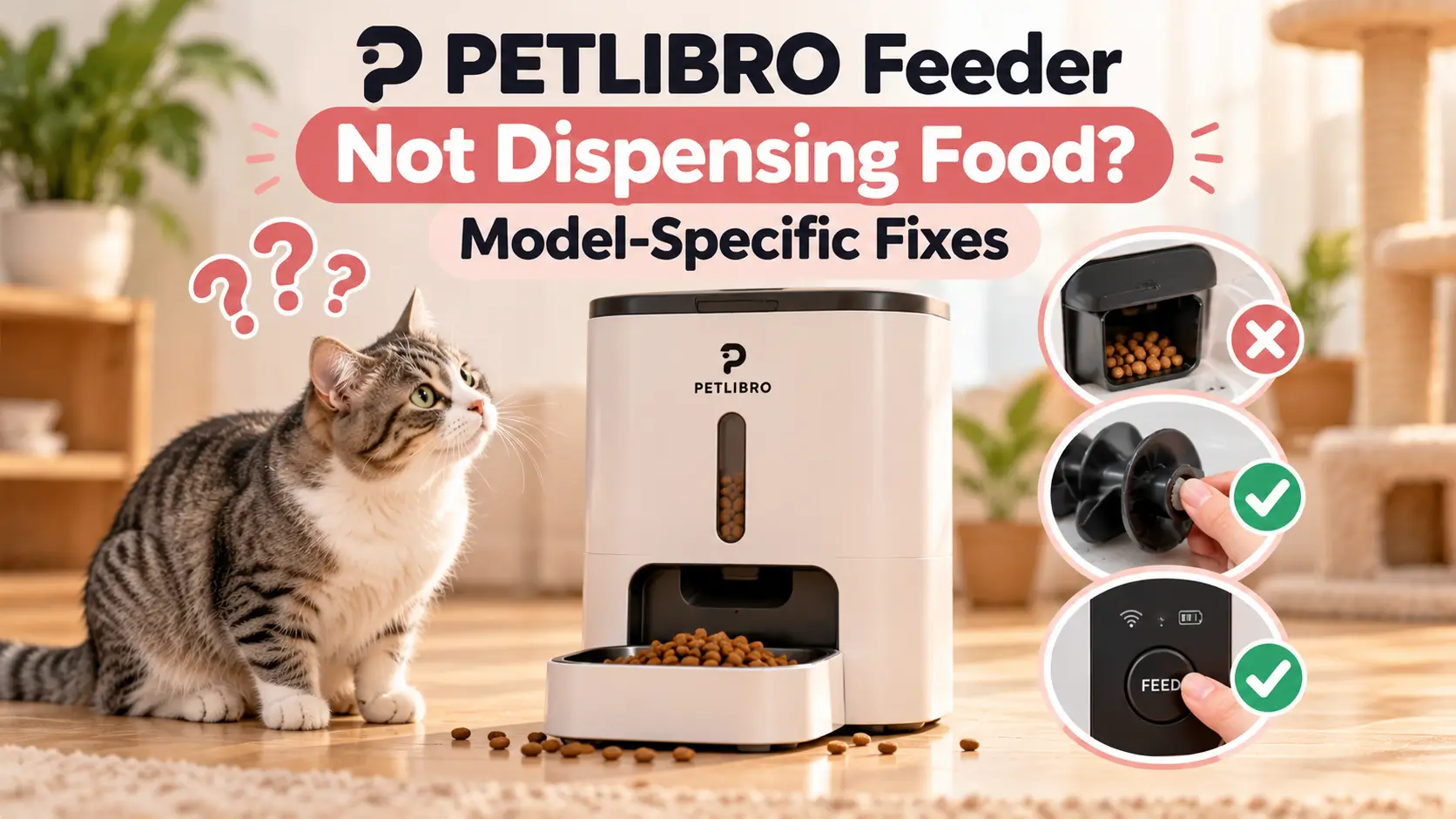
If your PETLIBRO feeder is not dispensing food, first try one manual feeding. If the motor runs but no kibble comes out, check food size, clear the chute, and inspect the rotor. If manual feeding works but scheduled meals fail, check the schedule, time zone, and app settings. The exact repair depends on your PETLIBRO model.
Your PETLIBRO feeder was supposed to make mealtimes easier.
Instead, you find an empty bowl, an unexpected error notification, or a feeder that makes its usual motor noise without releasing any food.
Sometimes the problem happens after switching kibble brands. Other times, the feeder stops following its schedule even though the app appears normal.
And occasionally, a brand-new feeder seems broken because the dispensing mechanism hasn’t been primed.
The frustrating part is that not every PETLIBRO feeder works the same way.
A Granary Automatic Feeder uses a different control system from a One RFID feeder. The Space Smart Feeder has a vacuum-sealing mechanism that can affect dispensing timing. The Polar Smart Wet Food Feeder doesn’t dispense kibble at all—it rotates refrigerated food compartments into position.
Applying the wrong troubleshooting steps can waste time or create a new problem.
This guide helps you identify the actual failure before attempting a repair.
You’ll learn how to distinguish a blocked food path from a scheduling error, what to check on specific PETLIBRO models, and when to stop troubleshooting and contact support.
Safety first: If your feeder misses a meal, feed your pet manually and confirm that it has eaten. Do not rely on a malfunctioning feeder while you’re away. Disconnect power and disable or remove backup batteries before cleaning or removing internal components, following your model’s manual.
How This Guide Was Prepared: The procedures below are based on PETLIBRO’s published product support instructions. PetsVibe Tech has not independently repaired or tested every model. Procedures and specifications may differ by hardware revision, so use the model identification on your device when following these steps.
🔎 First: Diagnose Your PETLIBRO Feeder in Five Minutes
Before taking the feeder apart, answer one question:
What exactly happens when you request a manual feeding?
That single test can narrow the problem considerably.
| What You Observe | Most Likely Area to Investigate | Start Here |
|---|---|---|
| No lights or response | Power supply or feeder electronics | Power check |
| Motor runs but no food comes out | Empty rotor, kibble bridge, or blockage | Food path |
| Grinding or repeated reversing | Jammed rotor or obstruction | Safe jam removal |
| Manual feeding works, scheduled meals fail | Schedule, clock, or app configuration | Schedule check |
| Food comes out, but less than expected | Kibble shape, portion setting, or sensor issue | Portion verification |
| App reports “Outlet Blocked” | Chute obstruction or sensor contamination | Outlet and sensor cleaning |
| One RFID dispenses, but access lid stays closed | RFID recognition or lid mechanism | Collar-tag and reader check |
| Space takes time before dispensing | Vacuum system or outlet-door operation | Space-specific checks |
| Polar lid opens but food compartment doesn’t move | Rotating tray or lid mechanism | Polar-specific checks |
The Manual Feeding Test
For a dry-food PETLIBRO model:
- Confirm that the feeder has power.
- Check that the food tank contains compatible dry kibble.
- Unlock the control panel if your model requires it.
- Request a manual feeding using the device controls or its supported app.
- Watch the food outlet, not just the app’s confirmation message.
- Check whether food actually reaches the bowl.
Do not use a manual-feeding command that you’re unfamiliar with. PETLIBRO models have different buttons and app interfaces.
If food comes out: The dispensing mechanism works at least during that test. Investigate scheduling, time settings, or intermittent problems next.
If the motor runs but no food appears: Investigate kibble compatibility, the rotor, and the food outlet.
If the motor doesn’t run: Check power, control-panel locking, and any displayed fault.
A successful manual feeding doesn’t prove that every scheduled meal will work, but it helps separate mechanical failures from scheduling problems.
🐾 Identify Your PETLIBRO Model Before Trying a Fix
Look at the label on the underside or rear of your feeder, or check the device information in the app.
Similar-looking PETLIBRO feeders can have different internal mechanisms.
Model-Specific Troubleshooting Table
| PETLIBRO Model | Model Identifier | Main Mechanism | Important Detail |
|---|---|---|---|
| Granary Automatic | AF005 / AF006 | Dry-food rotor | Check rotor, chute, and local schedule |
| Granary Smart | AF103 | Connected dry-food rotor | Inspect rotor errors and outlet sensor |
| Granary Camera | AF203 | Dry-food rotor with camera | Check dispensing separately from camera connectivity |
| Granary 2 | AF105 | Rotor with bowl weighing | Check Smart Refill and scale readings |
| Granary 2 Vision | AF205 | Rotor with camera and weighing | Check schedule, sensor, and portion settings |
| One RFID | AF301 | Dry-food rotor plus RFID access | Separate dispensing failures from access-lid issues |
| Air Smart | AF108 | Compact dry-food dispenser | Check power, rotor, and app faults |
| Space Smart | AF107 | Vacuum-sealed hopper and rotor | Allow for pressure normalization |
| Essential Automatic | AF001 / AF002 | Dry-food rotor | Smaller supported kibble range |
| Polar Smart Wet Food | Check device label | Rotating wet-food tray | Troubleshoot tray, lid, and cooling |
The identifiers shown are commonly published manufacturer references. Verify yours before following a model-specific procedure.
Kibble Size Is Not the Same for Every Model
This matters more than many owners realize.
| Feeder | Manufacturer-Published Kibble Guidance |
|---|---|
| Granary Automatic | 2–15 mm |
| Granary Camera | 2–15 mm |
| One RFID | 2–15 mm |
| Air Smart | 2–15 mm |
| Granary 2 Vision | 2–15 mm |
| Granary 2 | Approximately 2–18 mm, subject to shape |
| Space Smart | 2–18 mm |
| Essential Automatic | 2–10 mm |
| Polar Wet Food | Not a dry-kibble dispenser |
These ranges are model-specific; do not treat 2–15 mm as a universal PETLIBRO specification.
Even kibble within the stated size range can cause difficulties if it is unusually thick, crescent-shaped, crumbly, sticky, or irregular.
For example, a piece may have a short measured diameter but still become wedged sideways in a dispensing opening.
When diagnosing a jam, examine the shape and thickness of the actual food—not only the number printed on the bag.
🛠️ Fix 1: PETLIBRO Granary Automatic Feeder Not Dispensing Food
Applies primarily to: Granary Automatic Feeder AF005 / AF006.
This model uses a dispensing rotor that turns to release portions of dry kibble.
When the feeder turns on but no food appears, PETLIBRO recommends checking the power source, kibble compatibility, rotor, and outlet.
Step 1. Confirm Normal Power
Connect the feeder using its original compatible power adapter and cable.
Check that it powers on normally.
If the feeder is operating on batteries, switch to the recommended external supply for troubleshooting where possible.
This helps rule out weak battery power.
Step 2. Check the Kibble
Confirm that the food is dry and approximately 2–15 mm in size.
Remove any oversized pieces or food that has become damp.
If you recently switched brands, temporarily testing a smaller compatible kibble can help identify whether the new food is contributing to the blockage.
Step 3. Empty the Food Tank
Turn the feeder off and disconnect all power sources before opening the dispensing components.
Remove the food tank according to the product manual.
Inspect the food outlet for lodged kibble, crumbs, or foreign material.
Step 4. Inspect the Silicone Rotor
PETLIBRO specifically advises checking whether the silicone rotor is deformed or obstructed.
Look for:
- A trapped kibble piece
- Excessive food dust
- An incorrectly seated rotor component
- Visible deformation
- Foreign objects blocking movement
Do not force the rotor against resistance.
Do not attempt to reshape damaged components by heating or cutting them.
Step 5. Reassemble and Prime the Feeder
After cleaning and reassembling all components correctly, restore power.
Unlock the controls and request manual feeding.
PETLIBRO recommends testing several manual portions to determine whether the rotor turns and food reaches the bowl.
The first cycle after cleaning or installation may partly fill the rotor rather than delivering a full visible portion.
Allow each cycle to finish before starting another.
Step 6. Check the Saved Schedule
If the manual test succeeds:
- Confirm the device clock.
- Review meal times.
- Ensure the scheduled portion isn’t set to zero.
- Check that the intended meals are enabled.
Step 7. Inspect the Anti-Clog Detector
Some Granary configurations use a sensor near the food outlet.
Food dust or accumulated kibble can trigger an obstruction warning.
Clean the accessible sensor surface gently using a dry, soft cloth, following the manual.
Expected result: The feeder dispenses food during manual testing and then releases the programmed portion during a new scheduled test.
If the rotor won’t move even after clearing the food path and restoring appropriate power, stop repeated tests and contact PETLIBRO.
⚙️ Fix 2: PETLIBRO Granary Smart Feeder Shows “Rotor Stuck”
Applies primarily to: Granary Smart Feeder AF103.
A “Rotor Stuck” error usually points toward the dispensing mechanism rather than the Wi-Fi connection itself.
PETLIBRO’s support instructions focus on removing lodged kibble and examining the rotor assembly.
What to Do
- Note the exact error shown in the app.
- Turn off the feeder and disconnect its power sources.
- Empty the food tank.
- Remove the tank base and accessible rotor components according to the manual.
- Clear trapped kibble and dust.
- Check for visible damage or deformation.
- Reassemble the mechanism correctly.
- Restore power and test manual feeding.
PETLIBRO’s model-specific troubleshooting procedure includes a manual test equivalent to 3/12 cup after inspecting the rotor.
Use your model’s supported controls to perform that test.
What If the App Says “Outlet Blocked” Instead?
This is a different warning.
The food outlet may be obstructed, or the infrared sensor may be detecting food buildup.
First, check whether the bowl is overfilled and food is blocking the outlet.
Then clean the outlet and anti-clog sensor using an appropriate dry cloth.
PETLIBRO also documents a firmware-related change for this model: firmware V1.0.58 or later modifies how certain blockage notifications affect dispensing.
That doesn’t mean every blockage notification is harmless.
Confirm that food is actually being dispensed before dismissing the alert.
When to Contact Support
Escalate if:
- The rotor remains stuck after cleaning.
- The feeder repeatedly makes abnormal mechanical noises.
- You notice a deformed component.
- The warning immediately returns and feeding fails.
- The motor won’t respond during a manual test.
Avoid repeatedly commanding the motor to turn against a blockage.
📷 Fix 3: PETLIBRO Granary Camera Feeder Not Feeding
Applies primarily to: Granary Camera Feeder AF203.
A camera feeder has two systems that owners sometimes confuse:
The camera and network features monitor the feeding area.
The dispensing mechanism releases food.
One system may have a problem while the other continues working.
Scenario A: The Camera Works, but Food Doesn’t Come Out
Start with the food path.
Check that:
- Dry kibble is within the recommended 2–15 mm range.
- The food tank is correctly fitted.
- The rotor isn’t jammed.
- The dispensing outlet is clear.
- The feeder has stable power.
Then request manual feeding and observe the bowl.
Scenario B: The App Reports an Outlet Blockage
PETLIBRO explains that the camera feeder’s outlet sensor can detect an obstruction using infrared light.
A buildup of food dust or kibble may trigger the warning.
With the feeder powered off and disconnected:
- Examine the chute.
- Remove visible food buildup.
- Gently clean the accessible infrared sensor area.
- Restore power.
- Run a controlled manual feeding.
- Review the app’s feeding history.
If the dispenser operates normally but warnings continue, investigate possible sensor contamination or false detections.
Scenario C: The Camera Is Offline, but the Feeder Still Runs
Do not assume that a camera connection failure means food was not dispensed.
Check the actual bowl and the feeding records available after reconnection.
A network problem and a mechanical food-delivery problem require different troubleshooting.
What About Dual-Bowl Versions?
If your camera feeder uses a split bowl, verify that the divider and food chute are correctly installed.
Uneven distribution can make one bowl appear underfilled while the other receives more food.
The dispensing mechanism may be working even though food distribution is uneven.
Do not diagnose a complete feeding failure from the appearance of one side of a dual bowl alone.
⚖️ Fix 4: PETLIBRO Granary 2 or Granary 2 Vision Not Dispensing
Applies to: Granary 2 AF105 and Granary 2 Vision AF205, with model-specific differences.
These newer Granary models add features beyond conventional timed dispensing.
Granary 2 incorporates bowl weighing and Smart Refill functionality.
Granary 2 Vision combines feeding features with camera-based monitoring.
That creates additional reasons why the bowl might not be refilled as expected.
Problem A: The Feeder Runs, but No Kibble Comes Out
Begin with the ordinary mechanical checks:
- Confirm suitable dry kibble.
- Inspect for a blocked chute.
- Check that the stirring paddle or rotor components are seated correctly.
- Remove excessive food dust.
- Reassemble the mechanism.
- Run a manual feeding test.
PETLIBRO advises allowing the feeder to complete each manual cycle before requesting another.
If the dispensing compartments were empty after cleaning, more than one test may be needed to prime the mechanism.
Problem B: Smart Refill Doesn’t Work
This problem is different from a mechanical jam.
Smart Refill uses bowl-weight information to decide when additional food should be dispensed.
If the displayed bowl weight is incorrect, the feeder may not recognize that a refill is needed.
Check These Settings
- Confirm that Smart Refill is enabled.
- Review the refill threshold.
- Check the number of portions per refill.
- Confirm the daily dispensing limit.
- Compare the displayed bowl weight with the actual bowl condition.
If the displayed weight is inaccurate, follow the manufacturer’s Empty Bowl Calibration procedure.
Reopen and save the Smart Refill settings while the feeder is online.
Then test the function under the documented conditions.
Important: A feeder that doesn’t refill an apparently empty bowl may have a weighing or configuration problem even when its rotor works perfectly.
Problem C: Scheduled Feeding Is Skipped
For app-controlled Granary 2 models, check:
- Whether the schedule is enabled
- Time zone
- Repeat days
- Effective date
- Portion quantity
- Feeding history
- Any recent manual feedings
- Jam or power-related events
Some recorded feeding events may affect how subsequent scheduled or refill actions are handled.
Don’t assume that a skipped feeding means a defective motor.
Problem D: Granary 2 Vision Reports an Incorrect Portion
First determine whether the feeder dispensed an incorrect quantity or whether the bowl weight was measured incorrectly.
These are not always the same issue.
Run an appropriate manual dispensing test and verify actual output separately.
If the bowl scale seems incorrect, follow the model’s calibration instructions.
Avoid repeatedly changing food portions to compensate for an unverified scale error.
A Key Granary 2 Difference
PETLIBRO lists approximately 2–18 mm kibble compatibility for the AF105 Granary 2, with additional cautions about unusually shaped or thick pieces.
The AF205 Granary 2 Vision has a published 2–15 mm recommendation.
Use the specifications for the exact model rather than applying one Granary guideline to the entire product family.
🏷️ Fix 5: PETLIBRO One RFID Not Dispensing Food
Applies primarily to: PETLIBRO One RFID AF301.
The One RFID combines two different functions:
- Dispensing dry food from a hopper.
- Controlling bowl access using a dedicated RFID collar tag.
Because these functions are separate, you need to identify which one has failed.
Problem A: No Food Comes Out During Manual Feeding
PETLIBRO recommends:
- Confirm power using the provided cord and adapter.
- Check that dry kibble is approximately 2–15 mm.
- Remove the food tank according to the manual.
- Test the rotor using the supported manual-feeding procedure.
- Turn power off again before removing rotor components.
- Inspect and clean the rotor and its cover.
- Reassemble the parts.
- Refill with compatible kibble.
- Perform the manufacturer’s manual dispensing test.
PETLIBRO specifies a 3/12-cup test in its support instructions for this model.
The purpose is to determine whether the rotor can dispense food normally after cleaning.
Problem B: Food Is Dispensed, but the Cat Cannot Access It
If kibble reaches the protected bowl area but the lid doesn’t open for the intended cat, inspect the identification system.
Check that:
- The dedicated RFID collar tag is paired correctly.
- The reader mat is properly installed.
- The tag approaches within the intended reading area.
- Nearby metal objects or electronics aren’t interfering.
- The lid is not physically obstructed.
The One RFID doesn’t read implanted pet identification microchips. It uses its compatible collar tag.
A cat’s existing veterinary microchip cannot replace that dedicated tag.
Problem C: The Feeder Misses Scheduled Meals
Begin by verifying external power and saved schedules.
PETLIBRO also recommends checking for nearby interference and restarting the device during troubleshooting.
If basic checks fail, resetting and reconnecting may be appropriate—but only after you have recorded your existing schedule and followed the exact instructions for your hardware version.
A reset can require reconfiguration.
Problem D: The Lid Opens, but Food Is Missing
This points toward the dispensing system rather than tag recognition.
Inspect the hopper, rotor, and food outlet.
Don’t waste time repeatedly pairing the RFID tag if the actual problem is a blocked kibble mechanism.
How to Distinguish the Two Failures
| Observation | Investigate |
|---|---|
| Manual feeding releases no kibble | Rotor, food path, or power |
| Food is in the bowl but cat cannot reach it | Tag recognition or lid |
| Tag is recognized but no scheduled food arrives | Schedule and dispensing |
| Lid moves abnormally | Lid mechanism and obstruction |
| App shows rotor error | Rotor and kibble blockage |
For owners considering whether an RFID feeder is the right design, see our related guide:
Microchip Cat Feeder vs RFID Feeder: Which Should You Buy?
🔋 Fix 6: PETLIBRO Air Smart Feeder Not Dispensing
Applies primarily to: Air Smart Feeder AF108.
The Air Smart is a compact feeder, but its troubleshooting isn’t identical to every Granary model.
PETLIBRO’s official procedure focuses on power, compatible kibble, the rotor, and app-reported faults.
Step-by-Step Check
1. Verify power.
Use the correct power supply.
PETLIBRO’s AF108 troubleshooting documentation specifies a 5V/1A adapter when checking alternative compatible power components.
2. Check dry food size.
The published kibble size range is 2–15 mm.
3. Inspect the rotor.
Follow the manual to remove the tank and inspect accessible dispensing components.
If the rotor is obstructed, disconnect power before cleaning.
4. Run the supported manual-feeding test.
PETLIBRO describes an initial rotor test followed by a test with food reinstalled.
Allow the mechanism to complete its cycle.
5. Check the indicator and app.
Look for abnormal warning lights or rotor-stuck messages.
6. Review firmware status.
If the feeder remains operational enough to connect, check whether PETLIBRO provides an applicable firmware update.
Do not interrupt a firmware update or attempt one with unreliable power.
What If Manual Feeding Works but Automatic Feeding Doesn’t?
The motor probably isn’t the first place to investigate.
Review the meal schedule, active days, portions, and app synchronization.
Also confirm that the feeder is operating under its intended power conditions.
What If the Air Feeder Is Battery-Powered?
Battery configuration differs across PETLIBRO models.
Use the correct batteries and follow the model manual.
Don’t assume that every connected feature works identically during backup or battery-only operation.
🌬️ Fix 7: PETLIBRO Space Smart Feeder Not Dispensing
Applies primarily to: Space Smart Feeder AF107.
The Space Smart Feeder is different because it includes a vacuum-sealing system intended to protect stored kibble.
This creates an important troubleshooting detail:
The feeder may need time to normalize internal pressure before releasing food.
PETLIBRO states that dispensing can take approximately 30 seconds because the internal pressure must normalize and the outlet door must open before the rotor operates.
Don’t Mistake a Normal Delay for a Jam
Suppose you press Manual Feed in the app.
Nothing immediately falls into the bowl.
If you expect instant dispensing, you may assume the motor has failed.
But the Space may be carrying out its pressure-release sequence.
Wait for the complete cycle before repeating the command.
Step-by-Step Repair
- Confirm that the dry kibble is within the model’s 2–18 mm guidance.
- Request a manual feed and allow for the normal pressure-release delay.
- Check whether the outlet door opens.
- If the feeder still doesn’t dispense, stop it and disconnect power.
- Remove the tank according to the manual.
- Inspect the rotor cover, plastic rotor, and silicone vane.
- Clean accessible components and remove food buildup.
- Reassemble everything correctly.
- Restore power.
- Run another manual dispensing test.
PETLIBRO’s instructions include a 5/12-cup test after cleaning and reassembly.
What If the Outlet Door Won’t Open?
This may be a separate fault involving the vacuum system or outlet-door mechanism.
Do not force the door with tools.
Use the model-specific support procedure for a door that fails to open.
What If the Feeder Keeps Vacuuming?
A continuous vacuum cycle may indicate a sealing, pressure, or configuration issue.
Check that the tank and lid are fitted correctly.
Inspect the accessible seals for debris or damage.
If the system cannot complete its normal cycle, stop repeated attempts and contact support.
What Makes the Space Different?
A standard dry-food feeder usually focuses on turning a rotor and releasing kibble.
The Space coordinates:
- Food storage sealing
- Internal pressure
- Outlet-door movement
- Rotor operation
Therefore, a dispensing delay or failure can arise before the rotor even starts.
This is why ordinary Granary troubleshooting instructions should not be applied blindly to the Space Smart Feeder.
📏 Fix 8: PETLIBRO Essential Automatic Feeder Not Dispensing
Applies primarily to: Essential Automatic Feeder AF001 / AF002.
The Essential is an important exception because its manufacturer-published kibble range is smaller than that of many other PETLIBRO models.
PETLIBRO specifies approximately 2–10 mm dry kibble for this model.
If you’ve been using larger pieces because another PETLIBRO feeder accepts them, that may explain the trouble.
Step 1. Check Power
Disconnect the feeder from all power sources.
Then reconnect it using the recommended adapter and cable.
Check whether the device responds normally.
Step 2. Inspect the Food
Verify that the kibble is dry and within 2–10 mm.
Look for pieces lodged inside the rotor or outlet.
Step 3. Clean the Dispensing Path
With all power disconnected, empty the tank and clear accessible obstructions.
Check both the rotor and the chute.
Step 4. Test Manual Feeding
After reassembly, restore power and unlock the control panel.
PETLIBRO recommends manually dispensing a small portion several times to determine whether the rotor rotates normally.
Step 5. Test a New Schedule
If manual feeding works, set controlled test meals using the instructions for your model.
Observe whether the feeder releases the programmed portions.
Step 6. Investigate Power If the Rotor Doesn’t Turn
Check the appropriate outlet, adapter, cable, and approved battery arrangement.
If the motor still doesn’t operate, avoid disassembling the sealed electronic base.
What About a Wrong Clock?
The Essential relies on local scheduling controls.
If the clock is incorrect, meals may be triggered at unexpected times.
After a reset or extended power interruption, verify the time and meal settings.
Common Essential mistake: Using oversized kibble or assuming the schedule remains correct after resetting the feeder.
🧊 Fix 9: PETLIBRO Polar Wet Food Feeder Not Rotating
Applies to: Polar Smart Wet Food Feeder.
The Polar requires a different troubleshooting approach because it handles refrigerated wet food.
It doesn’t use the same dry-kibble dispensing rotor found in Granary or Air feeders.
Instead, it uses a rotating food tray and a moving lid to expose prepared meals.
When a meal isn’t presented, determine whether the problem involves:
- The sliding lid
- The rotating tray
- Food compartment positioning
- Ice buildup
- Power or scheduling
Problem A: The Food Tray Doesn’t Rotate
PETLIBRO recommends disconnecting power for more than five minutes before following the model’s recovery procedure.
Check for visible ice buildup or obstruction in the refrigeration area.
If ice is present, allow it to thaw safely according to the manual.
Check that the food tray is seated correctly.
Reinstall the tray, reconnect the original power supply, and use the documented reset and app controls to test rotation.
Never force a powered mechanism by hand.
Problem B: The Tray Rotates Only Partway
The food tray may be misaligned, or an obstruction may be restricting its movement.
Remove and reinstall the tray according to the manufacturer’s instructions.
Then run the controlled rotation test.
Problem C: The Lid Doesn’t Open
The sliding lid uses its own mechanism.
A misaligned or obstructed lid can prevent food access even when the tray itself is operating.
Inspect the lid installation and remove permitted components only after disconnecting power.
Use the documented app controls to test opening and closing after reassembly.
Problem D: The Feeder Doesn’t Present the Scheduled Meal
The Polar does not have the same physical manual-feeding button as ordinary dry-food models.
PETLIBRO documents app controls such as Feed Now, Open Now, and tray rotation.
Use the appropriate control for your current schedule configuration.
Check that the correct compartment contains food and that the selected schedule is active.
Problem E: The Food Isn’t Cooling Properly
This is not just a dispensing inconvenience.
Wet food may become unsafe if the cooling system fails.
Check that the side cooling vents are clear and that the device is not placed in direct sunlight.
If the cooling function is abnormal, do not rely on the feeder to preserve perishable food.
Discard food when safe storage cannot be confirmed, following food-handling guidance.
Important: Backup battery behavior for the Polar should not be confused with its refrigeration function. Verify the exact model’s emergency operation rather than assuming that batteries can continue active cooling.
When to Stop
Contact PETLIBRO if:
- The tray remains stuck after correct reassembly.
- The lid repeatedly jams.
- The motor makes abnormal noises.
- The refrigeration system reports an error.
- The unit cannot safely maintain its intended wet-food storage conditions.
📱 Fix 10: PETLIBRO Manual Feeding Works but Scheduled Meals Fail
This is one of the most confusing problems because the feeder appears mechanically healthy.
You press Feed Now, and kibble comes out.
But breakfast at 7:00 AM never arrives.
That tells you the issue may be related to scheduling rather than food movement.
Check the Schedule in This Order
1. Is the meal enabled?
A saved but disabled schedule will not trigger dispensing.
2. Is the time correct?
Check the feeder’s current time or the app’s time zone, depending on the model.
3. Are the repeat days correct?
A schedule may be active on weekdays but not weekends.
4. Is the portion set correctly?
A zero or unintended portion setting can prevent the expected meal.
5. Has the schedule synchronized?
For connected devices, verify the app has saved the settings to the feeder.
6. Is there an overlapping feeding event?
Review the meal history and any recent manual feeding, skipped meal, or Smart Refill event.
7. Was there a power interruption?
Confirm the device clock and saved settings after power problems.
A Controlled Scheduling Test
Rather than waiting until the next morning:
- Confirm that manual dispensing works.
- Note the current device time.
- Create a small test meal a few minutes ahead, using a safe portion.
- Save and synchronize the schedule as required.
- Observe the feeder at the scheduled time.
- Check the actual bowl and any available feeding record.
Count the test food toward your pet’s daily allowance.
Do not repeatedly dispense test portions that your pet can freely eat.
Don’t Reset Immediately
A factory reset may remove useful schedules, configurations, or device associations.
Try the non-destructive checks first.
If a reset becomes necessary, document your configuration and follow the exact instructions for your model.
🚨 Fix 11: PETLIBRO Says “Food Jam,” but the Outlet Looks Clear
A jam alert doesn’t always mean a large piece of kibble is visibly blocking the opening.
Some models use sensors that can be affected by food dust, crumbs, or other material in the sensing area.
First, Verify the Actual Problem
Ask:
- Did the feeder stop dispensing?
- Is the bowl already full?
- Does the alert appear during every meal?
- Does manual dispensing still work?
- Is the warning associated with the rotor or outlet sensor?
These distinctions help avoid unnecessary disassembly.
Safe Cleaning Procedure
- Turn off the feeder.
- Disconnect wall power.
- Disable or remove backup batteries as directed.
- Empty the food tank where needed.
- Inspect the food outlet.
- Remove visible crumbs and foreign objects.
- Clean accessible sensor surfaces using the manufacturer-recommended method.
- Reassemble the feeder.
- Restore power.
- Perform one controlled dispensing test.
Never spray liquid directly into the dispensing mechanism or the electronic base.
Do not insert metal tools into a powered food outlet.
What If the Warning Returns?
The issue could involve persistent sensor contamination, damaged parts, or an electronic fault.
Document the exact error and contact support.
Avoid dismissing repeated warnings until you’ve confirmed that the feeder consistently delivers food.
⚡ Fix 12: PETLIBRO Feeder Not Working After a Power Outage
If the problem began after electricity failed, investigate power and scheduling before dismantling the food path.
Check the Power Supply
Verify that the wall outlet works.
Inspect the adapter and cable for damage.
Use the manufacturer’s specified power supply.
Check Backup Batteries
Some PETLIBRO dry-food models support backup batteries.
But the battery type, switch position, and available functions vary by model.
A feeder may continue running saved meal schedules on backup power while connected features become unavailable.
Do not assume every model has the same backup system.
Check the Schedule
After power is restored, verify:
- Current time
- Active feeding schedules
- Repeat days
- Portion settings
- Network synchronization where relevant
Run a Manual Test
Confirm that the mechanism actually dispenses food.
If manual feeding succeeds, run a controlled scheduled test as well.
When Backup Power Is Not Enough
A backup system cannot prevent every failure.
Empty batteries, damaged motors, blocked food paths, or incorrect schedules may still interrupt feeding.
For more detail, read our related guide:
Automatic Cat Feeder Battery Backup: What Happens During a Power Outage?
🧪 A Better Way to Verify Your Feeder Is Fixed
One successful manual feeding is encouraging, but it doesn’t necessarily prove the problem is resolved.
Use a short verification sequence.
Test 1: Mechanical Dispensing
Run a supported manual feed.
Confirm that food actually reaches the bowl.
Test 2: Portion Consistency
If the model dispenses dry food by portions, run several controlled tests.
Collect the output separately and weigh it with a kitchen scale.
Remember that rotor-based portions may be volumetric rather than a fixed number of grams.
Different kibble shapes and densities can change the resulting weight.
Test 3: Scheduled Feeding
Create a small upcoming test meal.
Observe whether the feeder starts and completes the action.
Test 4: Error Monitoring
Check for renewed jam, power, or sensor warnings.
Test 5: Normal Routine
Observe several ordinary meals before trusting the feeder without direct supervision.
If you repaired the device after a serious or repeated failure, don’t leave your pet dependent on it until operation is consistently reliable.
Repair Verification Checklist
| Test | Pass Condition |
|---|---|
| Power | Feeder starts normally |
| Manual feed | Food is physically dispensed |
| Rotor | No repeated jamming or abnormal resistance |
| Food outlet | No persistent obstruction |
| Scheduled feed | Meal arrives at the correct time |
| Portion | Output is reasonably consistent for the model and kibble |
| App/status | No unresolved error affecting feeding |
| Real meal | Pet has access to the intended food |
The most important measure of success is actual food delivery—not merely an app status marked “successful.”
🛡️ When Should You Stop Troubleshooting and Contact PETLIBRO?
Not every dispensing failure is safe or practical to repair at home.
Stop using the device and contact support when you notice:
- Smoke, sparking, or a burning smell
- Abnormally hot electronics
- Exposed or damaged wires
- Water inside an electronic base
- A cracked or deformed dispensing rotor
- Persistent abnormal grinding sounds
- Repeated motor stalls after cleaning
- A damaged or swollen battery
- A wet-food cooling failure that cannot be resolved
- A mechanism that traps or threatens to injure your pet
Never bypass a safety sensor to force the feeder to operate.
Avoid opening sealed motor housings or making electrical repairs yourself.
What Information Should You Send to Support?
Preparing a complete report can make troubleshooting more efficient.
Include:
- Exact PETLIBRO model and hardware identifier
- Serial or product number, where requested
- Purchase information
- Clear description of the symptom
- Exact app error message
- Current firmware version, if available
- Kibble brand, size, and shape
- Whether manual feeding works
- Whether scheduled feeding works
- Photographs or a short video of the failure
For connected devices, PETLIBRO may request diagnostic logs through the app.
The manufacturer’s support instructions for some newer Granary models direct owners to PETLIBRO App → Me → Feedback to submit the issue and upload logs.
Only follow that path if it is available in your app version.
🧹 How to Prevent Future PETLIBRO Feeding Failures
Many dispensing problems are easier to prevent than to fix.
Build a maintenance routine around the actual model and the type of food it uses.
Daily
- Check that food is available.
- Confirm the bowl receives meals.
- Review important error messages.
- Check for visible food buildup.
When Refilling
- Use compatible dry kibble.
- Avoid damp food.
- Remove excessive crumbs and powder.
- Confirm the hopper and lid are correctly fitted.
- Check that the food path isn’t obstructed.
During Regular Cleaning
- Disconnect power first.
- Empty the tank as instructed.
- Clean the removable food-contact parts.
- Inspect the rotor and outlet.
- Keep electronic components dry.
- Reassemble each part correctly.
After Changing Kibble Brands
Test dispensing manually before relying on the usual schedule.
A food that worked well in one feeder may not perform identically in another.
After App or Firmware Changes
Confirm that schedules remain correct.
Run a manual feeding test and observe the next scheduled meal.
Before Leaving Home for an Extended Period
Verify that:
- The feeder has dependable power.
- Food is stocked appropriately.
- The dispensing system works.
- The schedule is active.
- The pet has drinking water.
- A responsible person can check on the pet.
An automatic feeder reduces routine work but doesn’t replace appropriate pet supervision.
🔗 Related PetsVibe Tech Guides
If your problem is not specific to PETLIBRO, this earlier article covers the broader mechanical and scheduling issues affecting automatic feeders:
Automatic Cat Feeder Not Dispensing Food? 9 Fixes That Actually Help
For problems with identification and food access rather than the dispensing motor:
Microchip Cat Feeder vs RFID Feeder: Which Should You Buy?
These guides complement the model-specific instructions above.
❓ Frequently Asked Questions
1. Why is my PETLIBRO feeder not dispensing food?
Common causes include incompatible kibble, a blocked rotor, food dust in the outlet, insufficient power, incorrect assembly, or scheduling problems. The exact diagnosis depends on your model and whether manual feeding works.
2. Why does my PETLIBRO feeder make noise but no food comes out?
The motor may be turning against an obstruction, the rotor may not be properly seated, or its compartments may be empty after cleaning. Check the kibble and dispensing path, then prime the feeder according to your model’s instructions.
3. How do I fix a PETLIBRO feeder rotor-stuck error?
Disconnect all power sources, empty the tank, inspect and clean accessible rotor components, and check for damage. Reassemble the feeder before testing. If the motor still stalls, contact PETLIBRO rather than forcing it to run.
4. Why is my PETLIBRO feeder not feeding on schedule?
Check that the schedule is enabled and has the correct time, time zone, repeat days, and portions. Confirm that settings have synchronized and review any skipped feeding or power-related events.
5. What kibble size works with PETLIBRO feeders?
It depends on the model. Many support approximately 2–15 mm dry kibble, while the Essential Automatic Feeder uses a 2–10 mm guideline and the Space Smart Feeder supports approximately 2–18 mm. Check your exact model and kibble shape.
6. Why is my PETLIBRO feeder showing an outlet-blocked warning when the chute is clear?
Food dust, crumbs, an overfilled bowl, or sensor contamination may be triggering the warning. Clean the outlet and accessible sensor surfaces with power disconnected, then confirm whether food dispenses correctly.
7. Why does my PETLIBRO Space feeder take time to dispense food?
The Space Smart Feeder may need approximately 30 seconds to normalize its internal air pressure before the outlet opens and the rotor starts. That delay can be part of normal operation.
8. Why is my PETLIBRO One RFID feeder not opening for my cat?
Check the dedicated RFID collar tag, reader mat, pairing, nearby interference, and lid mechanism. The One RFID does not recognize implanted veterinary microchips.
9. Why is my PETLIBRO Polar wet-food feeder not rotating?
Possible causes include an incorrectly seated tray, ice buildup, obstruction, power problems, or a lid or motor fault. Use Polar-specific instructions rather than dry-kibble rotor troubleshooting.
10. Will my PETLIBRO feeder still dispense food without Wi-Fi?
Some PETLIBRO models continue running locally saved feeding schedules during a network interruption. However, behavior varies by model and power mode. Remote app functions may stop working until connectivity returns.
11. Should I factory-reset my PETLIBRO feeder?
Not as the first step. Begin with power, food, manual feeding, and schedule checks. Reset only when appropriate for your model, after documenting settings and reviewing the manufacturer’s instructions.
12. When should I replace my PETLIBRO feeder?
Consider professional support or replacement when the motor repeatedly fails, electronic components are damaged, safety issues appear, or the manufacturer cannot provide a reliable repair. Do not continue depending on a feeder that repeatedly misses meals.
✅ Final Verdict: Fix the Right PETLIBRO Problem
When your PETLIBRO feeder is not dispensing food, the fastest path to a reliable solution is identifying which system has failed.
For Granary, Air, and Essential, start with kibble compatibility, the rotor, and the outlet.
For Granary 2, remember that Smart Refill and weighing settings can prevent an expected refill even when the motor is functioning.
For One RFID, distinguish food dispensing from collar-tag recognition and lid access.
For Space Smart, allow for its pressure-normalization process before assuming a dispensing delay is a malfunction.
For Polar Wet Food, focus on tray rotation, lid movement, refrigeration, and correct scheduling rather than dry-food jams.
Most importantly, don’t declare the problem fixed because one button press works.
Verify manual feeding, scheduled feeding, and actual food delivery before relying on the device again.
A dependable automatic feeder should make caring for your pet easier—not leave you wondering whether the next meal will arrive.
Fix the cause, test the result, and always make sure your pet has eaten.